
Vault
Storage that belongs to the account, not to the character: the items and the gold are shared by every character on your key. Experience you deposit stays with the character that deposited it (see Experience).
Items
The item vault has no size limit. Items go in and come out through a store window, a page at a time. An item the trade post could not sell comes back here, not to your pack.
It belongs to the account, not the character. An item put in by one of your characters can be taken out by another. It saves the moment an item lands in it: a server crash right afterwards does not lose the item. Identical items stack, and only identical ones: same name, same appearance, same properties.
Crafting draws on it directly. You do not have to take the materials out first.
What it will not take: a player corpse, some plot items, the wings rune - and anything taken with Pick Pocket while it still counts as stolen.
Opening it
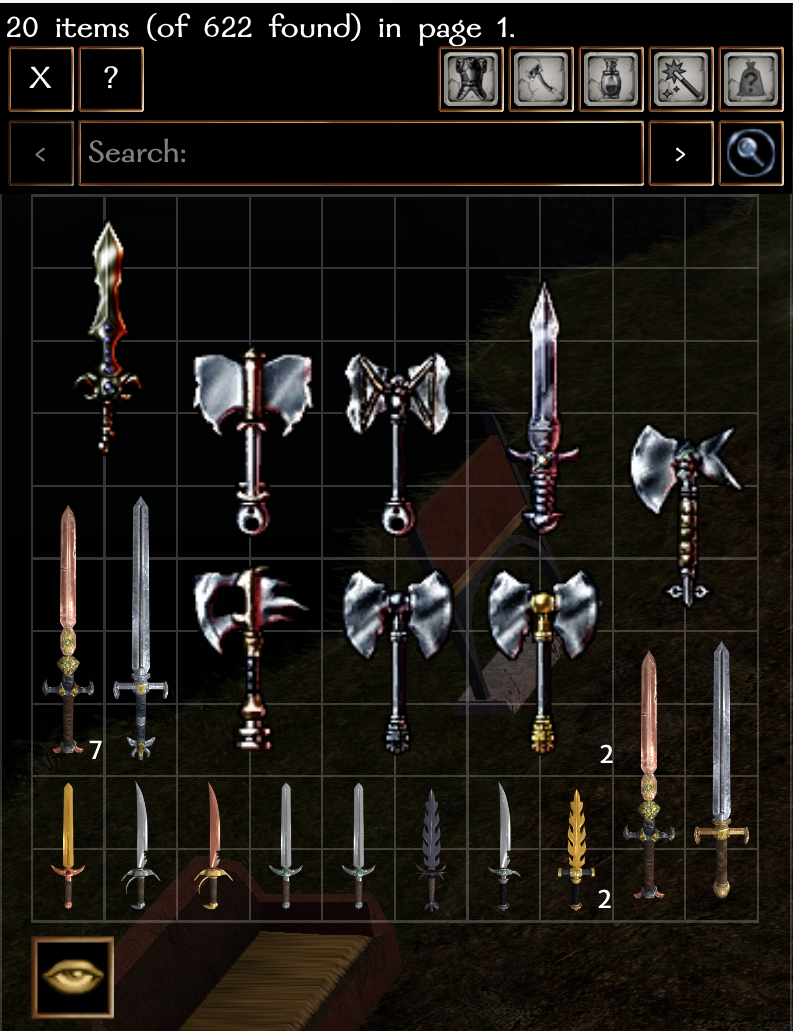
From the Player Menu, or by typing:
/vault | everything |
/vault search "sword" | opens with that already in the box |
/vault last 10 | the ten most recently added |
Searching it is more than a name box. The search understands:
| You type | It finds |
|---|---|
sword | anything whose name or item type contains "sword" |
"flaming longsword" | that exact phrase |
sword steel | both words - so do AND and && |
sword OR axe | either |
-cursed | everything except - so do NOT and ! |
(armor OR shield) ilr>5 | brackets group, and conditions combine |
ilr>10 | items above that item level; < and = work too |
tier=4 | items of that tier; tier>3 and tier<3 work too |
is:vengeful | vengeful items - see below for the others |
type:ring | items whose item type contains "ring", whatever they are called |
sword last 5 | the five most recently stored among the matches |
The conditions are ilr, tier and category, plus the is: and type: searches; anything else after a > or = matches nothing. An empty search returns everything. Conditions combine with everything else, so tier=5 is:vengeful category=1 ilr>35 is a valid search.
is: finds a kind of item. The kinds are vengeful, masterful, epic (also purple), legendary, socketable, nordock and brilliant, and the start of the word is enough - is:socket, is:legend. -is:vengeful excludes them.
type: looks at the item type only, never at the item's own name: type:sword finds every longsword, shortsword and greatsword, but not an amulet or ring that only has "sword" in its name, which plain sword would. Spaces are ignored, and a type of two words can be quoted: type:"light crossbow".
Tier includes the extra tier a vengeful or masterful item gains, so a tier 5 item made vengeful is found by tier=6.
The categories are numbered, and are the same tabs an ordinary merchant shows:
category=0 | armour |
category=1 | weapons |
category=2 | potions and scrolls |
category=3 | jewellery, wands and magic staves |
category=4 | everything else |
So category=0 ilr>10 is armour above item level 10, and category=3 !crafted is jewellery and wands that did not come out of GTS.
The buttons above the search box fill these in for you: the category icons set category, and Tier steps through tier 1 to 6 and then back to any tier. Each button changes only its own condition and keeps the rest of what you typed, so a weapons click followed by two clicks on Tier searches category=1 tier=2.
A Portable Banker costs 1,000,000 gold and belongs to the character that bought it. Once bought, deposit and withdraw appear inside your own player merchant, wherever you are.

Gold
The account has a gold balance of its own. A deleted character's gold is paid into it. It is also spent as a second purse: when a resurrection costs more gold than you are carrying, the rest comes out of the bank.
Experience
Experience can be banked too:
- A deposit is charged 25%. You lose all the experience you deposit, and 75% of it is stored.
- Deposited experience is stored on the character that deposited it, not on the account.
- A withdrawal fills you up to the next level and no further. If you already have enough experience for the next level, you cannot withdraw.
- A withdrawal takes from the character's own balance first, then from the account's.
- You cannot deposit or withdraw while polymorphed.
- An active hardcore character is refused a withdrawal, and a deposit stores nothing.
- A premium subrace must be paid for before that character can withdraw anything.
Deleting a character banks its experience, and its own banked experience, to the account. Anything above what level 40 needs - 780,000 - comes back as Epic tokens instead.