
Sockets
Gems go into equipment and add properties to it. Socketing costs nothing: no gold and no tokens.
Where they come from
A socketable item has a green name and arrives with its sockets empty.
- Wearables are bought with Epic Tokens in Castle Glendario, the epic zone.
- Weapons drop from raid bosses, and nowhere else.
- Gems drop from level 40 raid bosses, on their corpses and in their chests. They are also bought with Epic Tokens in Castle Glendario.
Gems live in a pool, not in your pack
A gem you pick up leaves your inventory and is added to your gem pool, in the quantity the gem is worth. The pool belongs to your account: every character on your CD key uses the same gems.
Sockets on an item
A piece of equipment has 3 to 6 sockets, by base item type. About half the base item types have no sockets.
All the copies of one gem share a single socket. A second and a third copy of the same gem go into the same socket and raise the property. Each gem has its own maximum per item, and the window takes no more than that:
| Gem | Copies one item takes |
|---|---|
| An ability score, AC, attack bonus, enhancement | 6 |
| A skill | 15 |
| A saving throw | 5 |
| Spell resistance | 17 |
| Mighty | 10 |
| A damage type, and massive criticals | 7 |
| Regeneration | 4 |
| A damage resistance | 2 - Resist 5 / - for the first, Resist 10 / - for the second |
| A bonus spell slot | 2 of the same level |
| Freedom, Haste, Keen, Knockdown, Power Attack, Holy Avenger, the extra ranged damages | 1 |
Visual effect gems and experience gems take no socket. They sit under the item's picture instead of in a slot. Visual effect gems go on melee weapons only.
The visual slot
Visual and experience gems sit in a slot of their own, and an item holds one of them at a time. Replacing it returns the old gem to your pool.
Finding your gems
Player Menu -> Player Tools -> View my Gems, or type -my_gems. The panel lists everything in the pool. Materialize takes a gem out of the pool and puts it in your inventory as an item again; that is how a gem is traded. Moving a gem into your vault does the opposite: it leaves the character and goes into the pool.
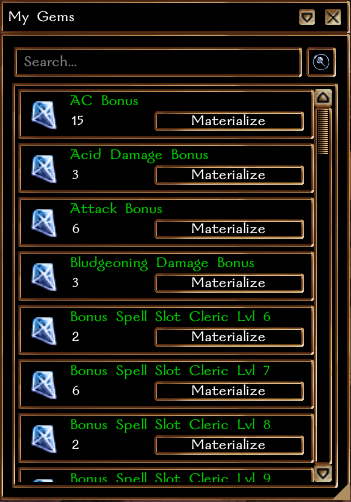
Opening the socket window
Any of these opens it:
- equip the item and use its own item power on yourself;
- Player Menu -> Work with this item -> Socket this item;
- type
-socketand click the item.
The window shows the item's slots, with the gems that fit them on the left. + adds one copy and - removes one. M fills a gem to its maximum and 0 clears it.
The window also adds a tag of your own to the item's name, up to 32 characters, and changes the item's icon, including on items the appearance editor does not change.
Gems that take no socket, the visual and experience ones, are listed under the item's picture in the middle instead of against a slot.
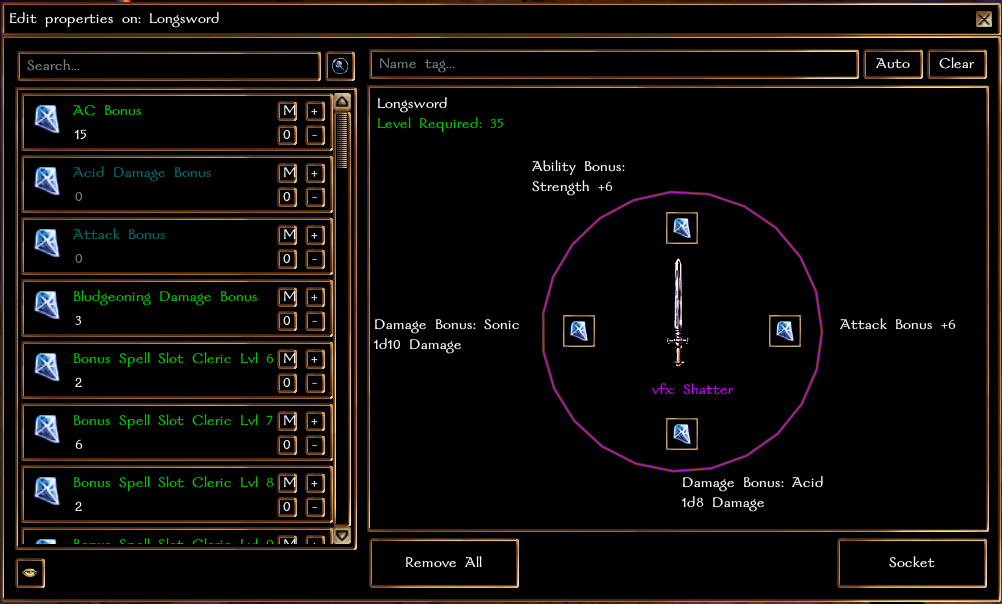
Working in the window
Changes are staged: nothing happens to the item until you press Socket. Closing the window discards the staged changes. Typing part of a gem's name filters the list as you type.