
Interface
Much of the game's own interface is replaced here. Most of what you can do outside combat is in the Player Menu. Drag it from the radial menu onto your quickbar, or type -plm to open it (see Commands).
What the Player Menu holds
Getting about
- Teleport to the places the main quest has opened to you.
- Port to your default location, once an hour, and not in combat. The default location is set at a bindstone.
- House return, if you have a house.
Your character
- My info - numbers the game does not show you.
- Delete this character, and reroll where a patch has entitled you to one. See Re-level.
- Reset your login name, within 7 days of your first login.
- Buy a main quest step with Epic tokens, from level 40.
- Unlock a premium race.
- Remove a custom skin, which gives the skin item back to you.
While adventuring
- Look for a party, and check the party against the level rules. See Parties; the Party Finder in the players list does more.
- Open the damage meter, under Player Tools.
- Look for a resurrection while dead: it tells everyone online where your corpse is, and which kind of raise you are asking for. See Resurrection.
- Dungeon options inside a dungeon instance: vote to kick, and master loot on or off.
- Check the dungeon cooldowns, the rest cooldown, and the time until the next server reboot.
- Identify everything you carry, either with Lore or for 1,000 gold an item.
- Summon a merchant (stores):
- the newbie merchant, up to level 3;
- the shared player merchant, at any level;
- your faction's temple merchant, if you have bought it from the donors store.
- The vault, and the book of summons, which sets what your summons look like.
Settings
- Turn hardcore on for this character.
- Accept balm resurrections only, which keeps the experience cost of a raise at 1%.
- Turn off quest markers, the shout channel, loot notices, the custom character sheet, or the custom map.
- Turn the Warlock's Eldritch Blast auto-repeat on or off.
- Allow mounting while wearing an unusual appearance (see Mounts).
- Turn experience off, or halve it. Both are per character.
- Roll dice, and play emotes.
Bags that fill themselves
A bag in your inventory can be given a tag. Loot that matches the tag goes into that bag instead of into the first free slot.
- Turn the option on in the Player Menu.
- Use Work with an item -> Bags Rename to give each bag a tag and a colour. The tag decides which loot the bag takes.


The character sheet
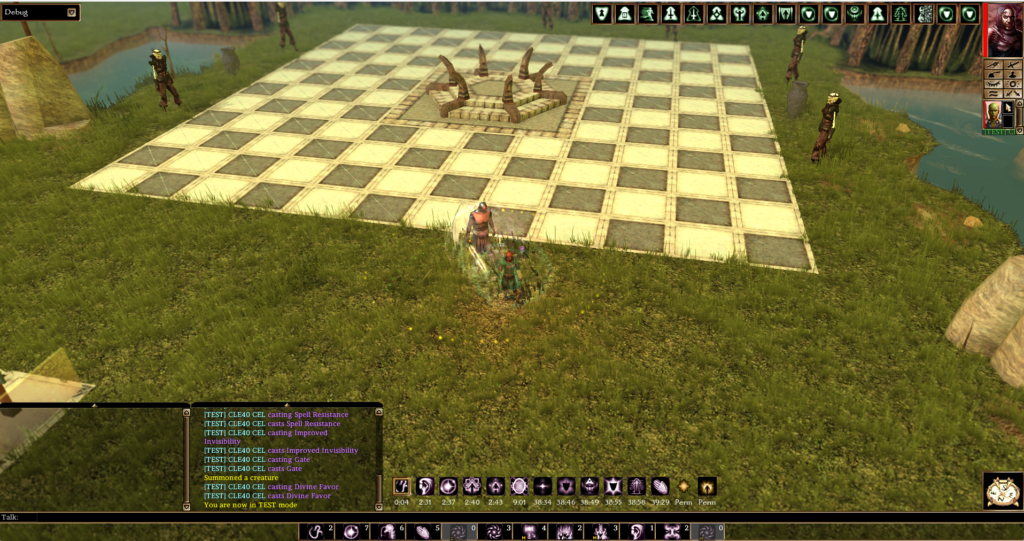
The game's own sheet is replaced by one with 6 tabs: Character, Skills, Feats, active effects from spells and abilities, active immunities, and active damage reductions.
The Character tab shows:
- your portrait, all 3 class slots with their levels, and the 6 abilities with their modifiers;
- your saving throws;
- a full attack breakdown for each hand: the damage dice, every modifier, the critical threat range and multiplier, and any bonus damage from a feat or an effect.
Two-weapon fighting penalties show in the off-hand column. Haste and slow are already counted in the attacks per round.




The experience section shows a progress bar while you level, a BEGIN LEVEL UP button when you have earned a level, and a plain label at the level cap.
- The sheet refreshes when a buff lands or expires, or when you change gear.
- It reopens where you left it, per character. It does not open for your associates.
-chars opens the base game's sheet beside it. The Player Menu can switch back to the old sheet permanently.
The effects window on its own
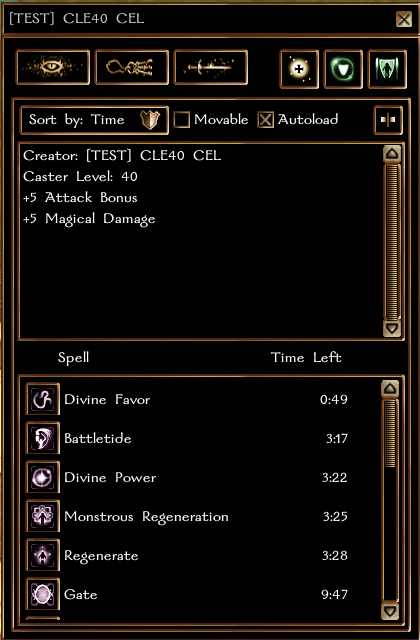
The active effects tab has an Export effects window button. It opens a small window with only effect icons and their remaining time. The window stays open after you close the character sheet.
- Effects run left to right, soonest to expire first, permanent ones included.
- An icon flashes when it has 60 seconds or less left.
To move it: open the character sheet, tick Movable, drag the window where you want it, then untick. The position is saved per character and per kind of device: the same character played from a PC and from Android keeps two separate positions. Autoload opens the window at login.
The players list
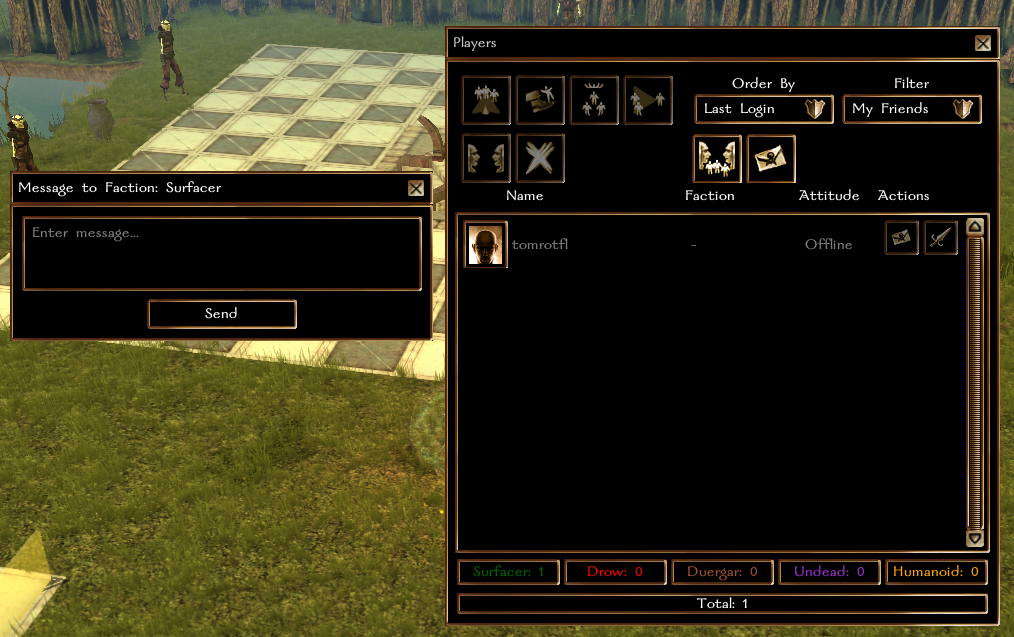
The players list is also replaced. The social actions are here.
- Filter by everyone, your party, your friends, a single faction (your own is marked), hostile players, or hardcore players.
- Friend requests are sent from here. A friend stays in the list even while offline.
- An account name shows under a character name only for someone in your party or on your friends list.
Click a portrait to select someone. The selection is highlighted, so you can see who an action will target. The actions are: invite, leave party, remove a member, transfer leadership, private message, message your whole faction, and toggle hostile for PvP. The footer shows each faction's player count in its own colour, and the total.
Open Party Finder switches the window to the Party Finder, the board of players looking for a group, and Players List switches it back.


Saved quickbar setups
Your quickbar is the 36 buttons the game gives you, three bars of twelve. A quickbar setup saves the whole quickbar. You get 10 setups per character, for example one for a dungeon, one for PvP and one for gathering.
Open a setup from the Player Menu. The window shows your current quickbar beside the saved one, so you can see what restoring would change. The buttons are Save Quickbar, Restore Quickbar and Delete Quickbar, and a box at the top names the setup.


Spell books
The same for a class that memorises spells: 10 saved spell books per character, with the same compare window and three buttons - Save Current Book, Restore This Book, Delete This Book - and a name of your choosing.


Fast cast
10 slots, each holding a set of spells. Each slot you fill becomes an ability on your radial menu that casts the whole set. Fast cast works differently in combat.
Fast cast has a page of its own.
The other windows
- The map - the whole world, your party, what you have explored and where your quests are. See In-game map.
- The journal, filtered and sorted the way you choose. See Quests.
- Mail, opened from the players list.
- Associates control for henchmen, summons and companions.