World map
Every area of Nordock, drawn as it looks in game, with the ways between them: open the map. It is also linked from the front page.
It is built from the module rather than drawn by hand, so it knows what is actually in each area - and it is the same map the game itself draws. The in-game map is the version that knows where you are standing.
Everything sits on the drawn map of Nordock itself, which is worth a look on its own:
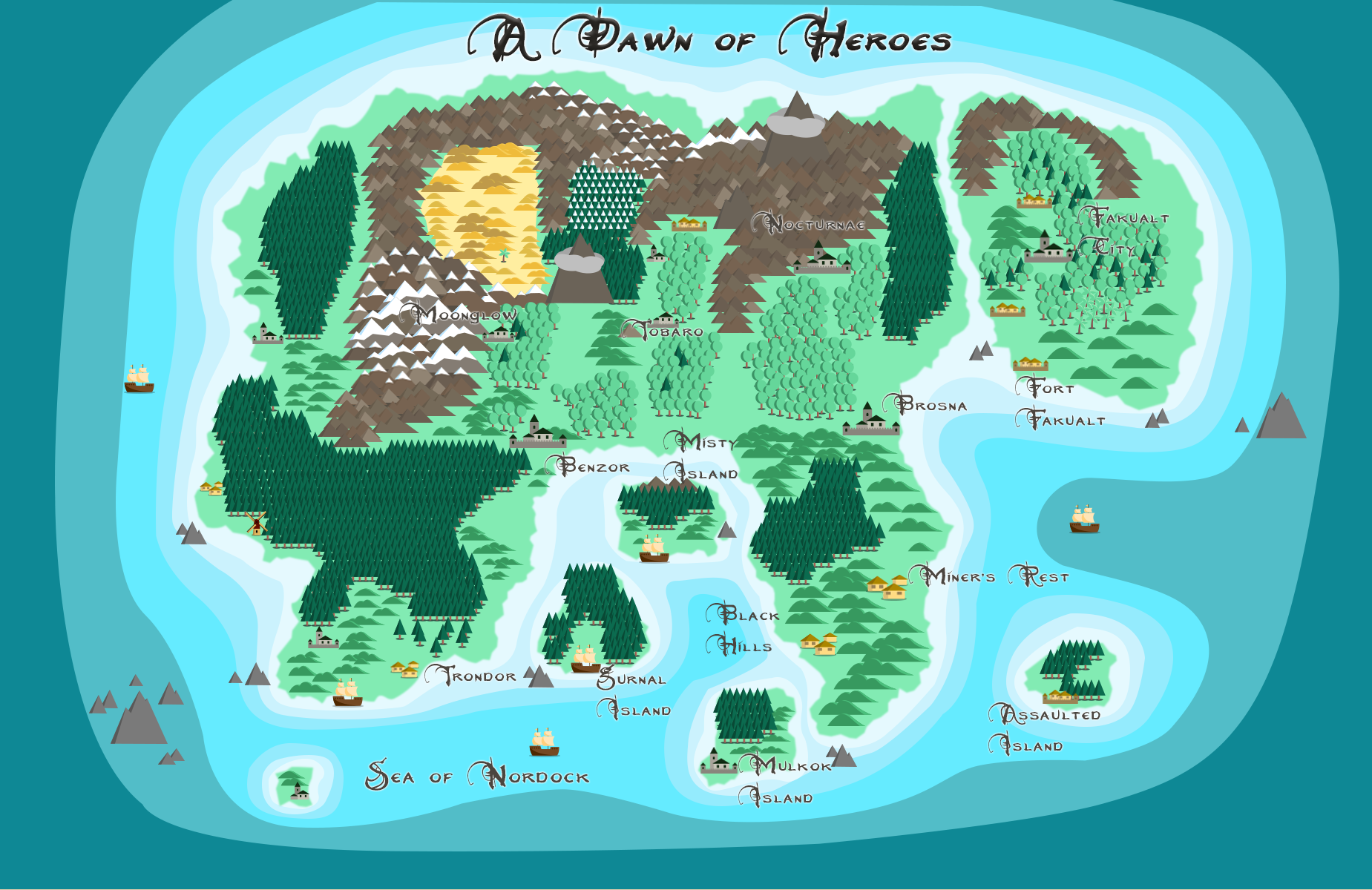
The three views
World lays every area out on the drawn map of Nordock, each one showing its own picture. Drag to move, scroll to zoom, and click a place to read about it. The +, - and Fit buttons zoom around the middle instead of the pointer, and Fit shows the whole world.
Region narrows to one region, which is the readable scale for somewhere like Benzor with a dozen interiors around it.
Area opens a single place, filling the screen with its own map. Double-click anything on the world map to go straight there. Back returns to wherever you were looking before.
Inside an area
The circles are the things worth finding:
- Gold - a way out. Click one and the map follows it to wherever it leads.
- Blue - a boat dock.
- Red - a portal.
- Grey - a door to somewhere that is not on the map, usually a building you can enter.
- Green - someone who gives quests, with the quest numbers beside their name.
Names are shown beside each one. If a busy place gets crowded, the names box turns the labels off and clicking any circle still tells you what it is.
The lines between areas
Every connection is drawn: grey for somewhere you can walk, blue for a boat, red for a portal or a journey someone arranges for you. The three checkboxes turn each kind off, and the levels menu hides the surface or the underground so the other one stops being buried under it.
Finding your way
Search finds a place by name as you type - interiors included, marked as such. Click a result and the map goes there.
Routing works out how to get from one place to another. Select an area and press Route from here, then select another and press Route to here. The path draws in gold and is listed step by step in the panel, each step clickable. It follows the connections the map is currently showing, so turning off boats genuinely changes the answer.
What the panel tells you
Its size in tiles, whether it is above or below ground, the range of challenge ratings its creatures fall in, which region it belongs to, who gives quests there and which quests those are, what is inside it - the shops, crypts and houses reached through it - and everywhere it connects to, with how you get there. All of it clickable.
What it does not show
Anything that needs a character standing somewhere: explored and unexplored ground, monsters, your current quest objectives, your party. This is the world as it is, not as one player has seen it. The in-game map does all of that, because in game there is someone standing there.
The ? button opens the map's own guide, which covers everything on this page.